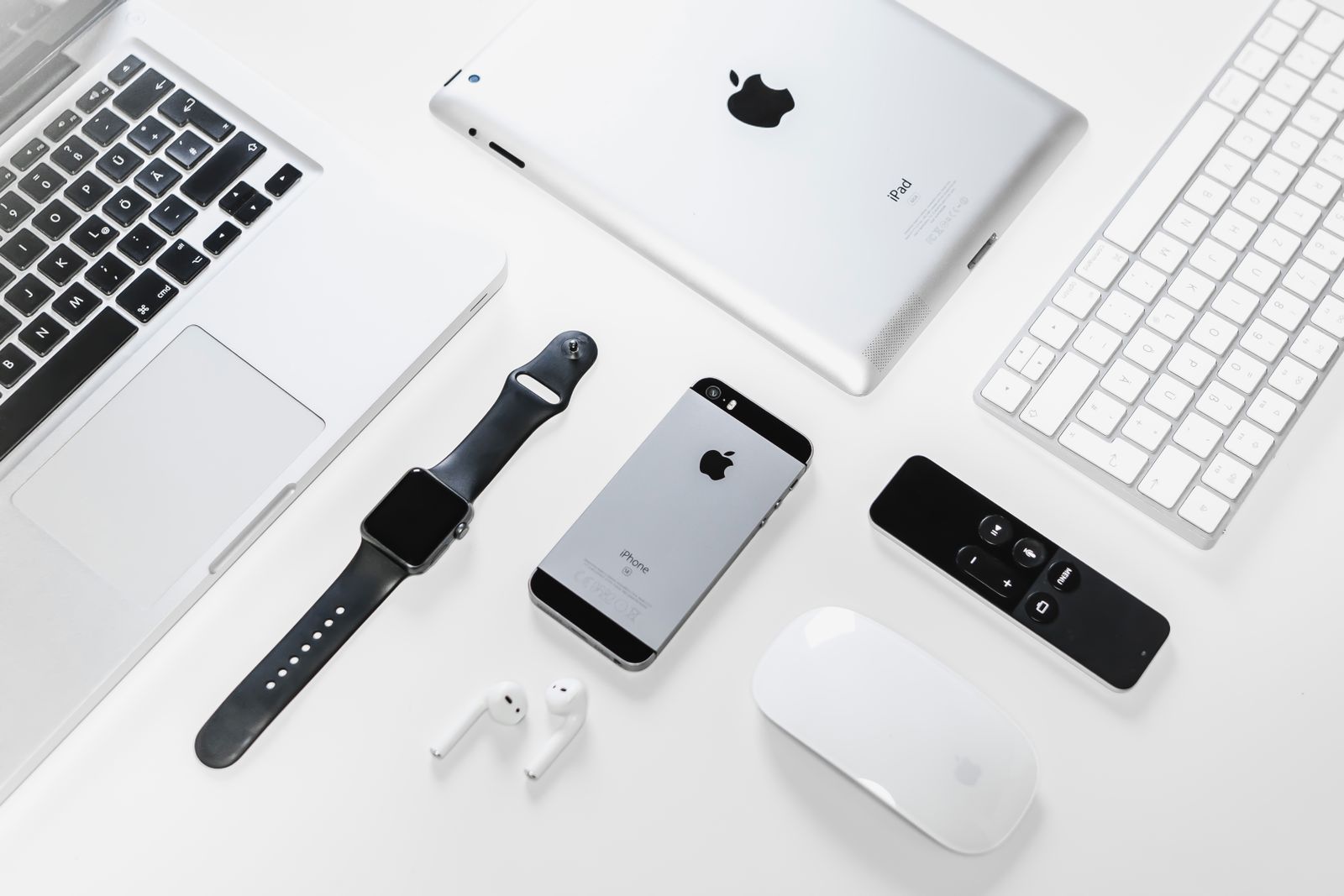
Use the exact model name and identifier when checking parts, accessories, or software support. A device’s appearance or custom name is not enough. These steps use Apple’s official identification guides so you can match the number you find to the correct model.
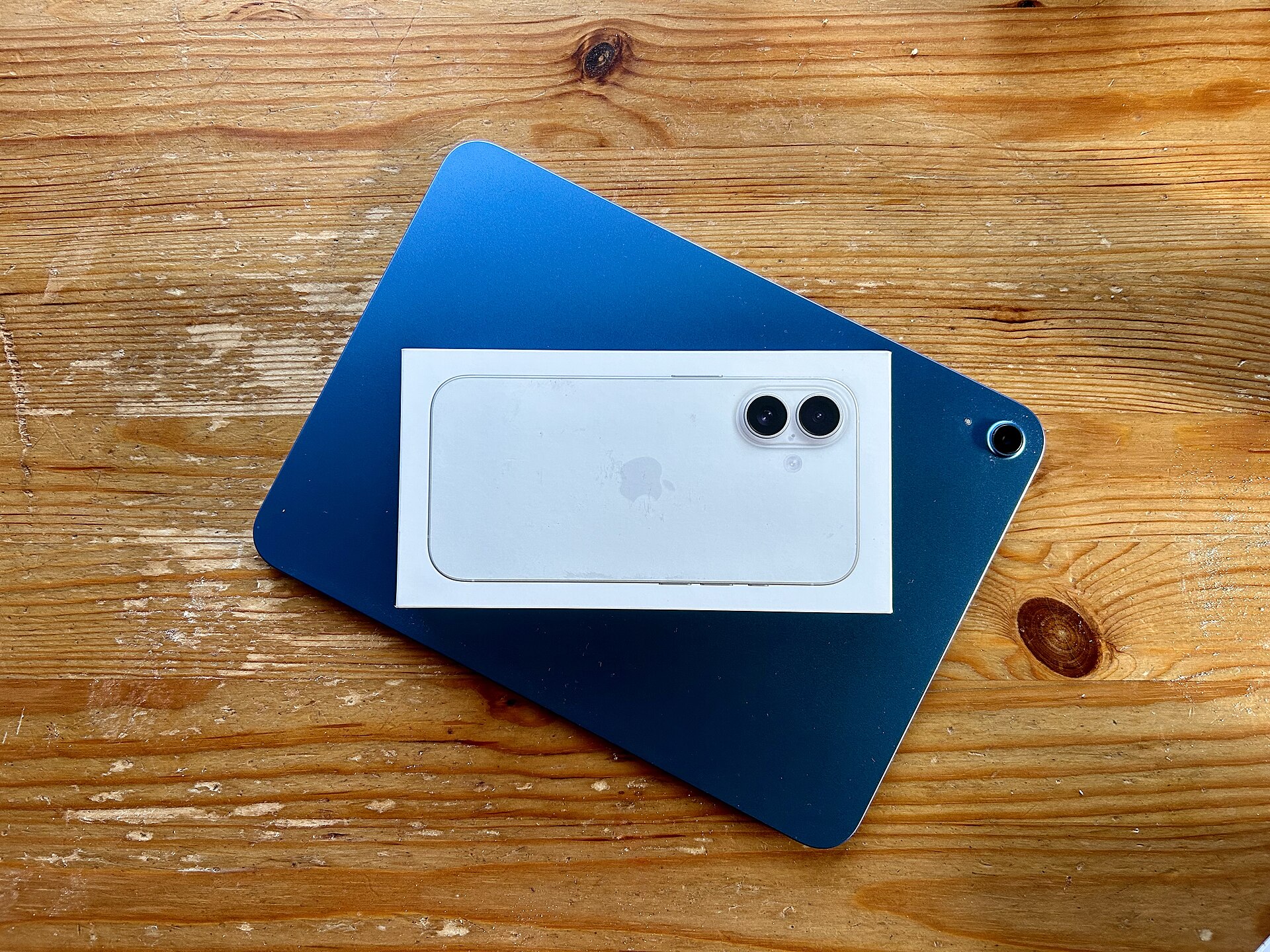
iPhone: check Settings first
- Open Settings → General → About.
- Read the Model Name. In the Model Number row, the initial value is a part number.
- Tap that value to reveal the A-number, then match it with Apple’s iPhone model list.
If the phone will not turn on, Apple’s hardware-location guide explains the alternatives. iPhone 7 and earlier have the model number on the back. On later models with a SIM tray, it is inside the tray slot; on models without a tray, it is in the connector. Use bright light and do not insert tools into the connector to read it.
iPad: reveal the model number
Open Settings → General → About and tap the part number in the Model Number row. Match the resulting A-number to Apple’s iPad model list. Some models show the number on the back; for others, use the connector location described in Apple’s hardware guide.
Mac: use About This Mac
Choose Apple menu → About This Mac to see the model name. If the Mac will not start, check its original packaging or the serial number printed on the computer. Apple’s Mac identification guide explains the available methods, including its coverage lookup. A generic chassis A-number may not describe the exact configuration you need.
Apple Watch: use the paired iPhone
- Open the Watch app and select My Watch → General → About.
- Find Model Number; it initially shows a part number.
- Tap it to show the A-number, then match it with Apple’s Watch identification guide.
Engraving on the back can help identify case details, but do not assume the required A-number is printed there. The paired-app method is the documented starting point.
Check your warranty and support status with the serial number
Once you have the model identified, the next question is usually “is it still covered?” Apple runs an official coverage checker at checkcoverage.apple.com. Enter the device’s serial number (found on the same About screen where you found the model number) and it shows the model, warranty status, and whether AppleCare is active.
This is worth doing before you buy parts, book a repair, or sell the device. A phone with active AppleCare gets a very different repair quote than one without, and knowing that before you walk into the conversation saves a trip. The page also confirms the exact model Apple has on record for that serial number, which is a useful cross-check if you bought the device secondhand and want to confirm it matches what the seller claimed.

Identify AirPods and other accessories
AirPods don’t have an About screen, but they do have a model number, and it matters — AirPods Pro (1st vs 2nd generation) use different ear tips and different firmware, and cases are not interchangeable across generations.
With the AirPods connected, open Settings → Bluetooth on your iPhone or iPad, find the AirPods in the list, and tap the info button next to them. The model number is listed there. You can match it against Apple’s published AirPods identification guide the same way you match an iPhone A-number.
The charging case also has a model number printed inside the lid in very small text — bright light and reading glasses help. For most people the Bluetooth screen is the practical route; the printed number is the backup when the buds won’t connect.
See every device on your Apple Account
If the device in question won’t turn on, or you simply can’t lay hands on it, your Apple Account keeps a list. On an iPhone or iPad, open Settings, tap your name at the top, and scroll down: every device signed in to that account is listed. Tapping one shows its model and serial number. On a Mac, the same list is in System Settings → [your name]. You can also see it by signing in at your Apple Account page on the web.
This is the fastest way to answer “which iPad is this?” for a device sitting in a drawer, or to check the model of a family member’s device you set up years ago. It only lists devices signed in to that account, so a secondhand device bought signed-out won’t appear — but for your own gear it is usually the shortest path.
When the device is dead, locked, or missing
The article’s hardware-location steps assume you can inspect the device. When you can’t, work outward:
- Original packaging. The box label lists the model name, part number, and serial number. If you keep boxes (or a photo of the label), this is often the fastest answer.
- Purchase records. The emailed receipt from Apple or the carrier shows exactly what was bought. Carrier account pages also list the devices on your lines.
- Find Devices. Signing in to iCloud.com and opening Find Devices shows your signed-in devices with their model names — useful when the device itself is lost or dead but was signed in.
One caution that applies to all of these: confirm the record belongs to that device. A receipt for “iPhone” from two upgrades ago, or a box reused for storage, has misled plenty of people. Match the serial number, not just the model name, before ordering parts.
Why the exact identifier matters: parts, cases, and resale
“iPhone 14” is not specific enough for most practical purposes, and this is why the A-number and part number exist:
- Cases and accessories are cut for specific models. An iPhone 14 case does not fit an iPhone 14 Pro — the camera cutout is different — and iPad generations with the same screen size can have different button and camera placements.
- Repair parts are model-specific. A screen assembly, battery, or charging port for one generation generally does not fit the next, even when the devices look identical. Repair shops and parts sellers list compatibility by model number, not by “the big iPhone.”
- Resale listings need the exact model plus storage capacity and, for iPhones, battery health (Settings → Battery → Battery Health). “iPhone 13, 128GB, 91% battery health” sells faster and with fewer disputes than “iPhone, good condition.”
Getting the identifier right once, at the start, prevents the classic loop of ordering the wrong part, returning it, and ordering again.
Record only what you need
Keep a note of the model name, A-number or Mac identifier, and the relevant configuration. Model-family numbers do not necessarily identify an individual device’s storage or every installed option. Check those separately before buying parts or writing a sale listing.
Avoid posting an unredacted About-screen screenshot: it may include a serial number or other device identifiers. When a device is offline, packaging and purchase records can help, but confirm they belong to that device. A custom name in Find My is not proof of the model.

The DIY Geek — hands-on guides for electronics, 3D printing, woodworking, and smart home.